Transcoders
Transcoders are implemented as separate executable binaries that are run from pstreamer as separate processes.
Configuration of type 1toN are supported, so you can get several streams with different encoder settings from the one decoder.
Video and audio must be present in the source stream. The options without video or without audio are not supported.
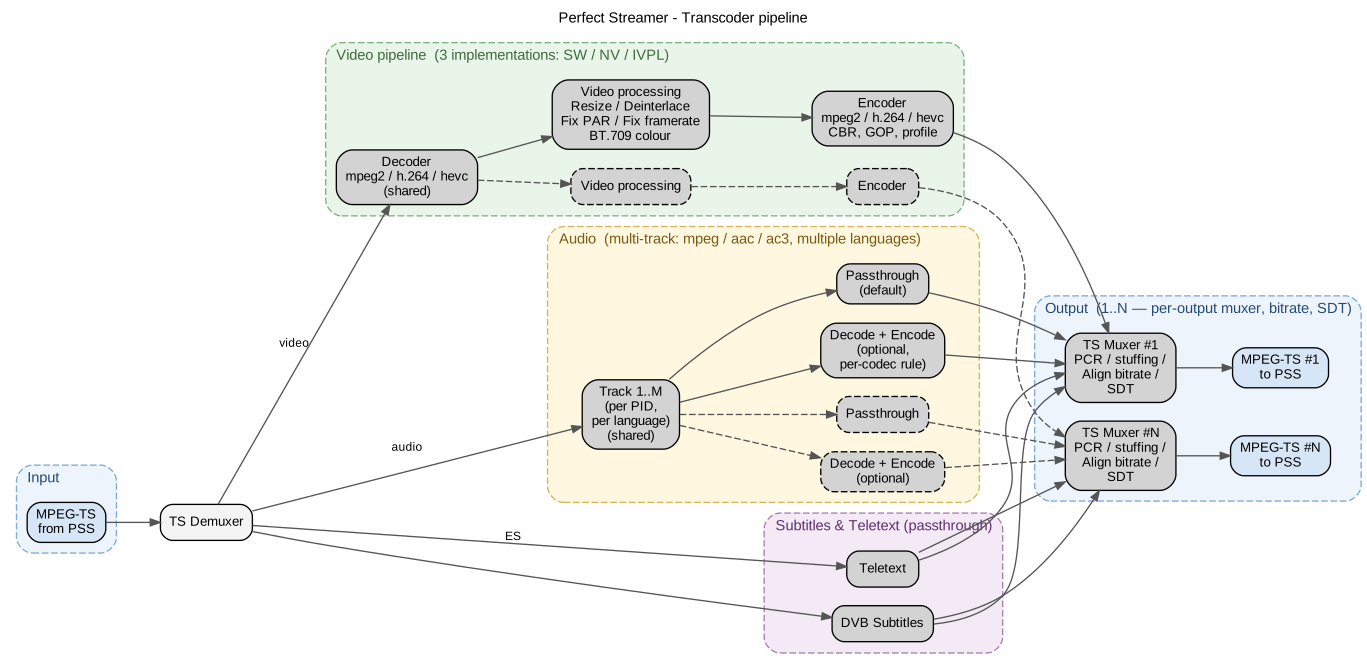
Transcoder architecture: a single shared decoder → N independent VPP + encoder branches (1-to-N); audio is multi-track with optional per-output transcoding; subtitles and teletext are passed through.
Codecs are implemented:
Video SW decoder: mpeg2, h.264, hevc (h.265)
Video NW decoder: mpeg2, h.264, hevc (h.265)
Video SW encoder: mpeg2, h.264, hevc (h.265)
Video NW encoder: h.264, hevc (h.265)
Interlaced stream support on input and output.
For H.264 and HEVC decoder, the interlace alternate format (two separate fields in the stream) is supported. It is converted to interlace interleaved.
For HEVC decoder, the Main10 profile with bt.709 (SDR) and bt.2020 (HDR) is supported. HEVC encoder always uses the Main profile with bt.709.
For H.264 and HEVC decoder, the VFR (Variable Frame Rate) format is supported. It is converted to a constant frame rate.
Audio decoder — mpeg (layer 1,2,3), aac, ac3
Audio encoder — mpeg (layer 2), aac
Video Passthrough mode is mode without video transcoding, audio only is processed. SW transcoder is used.
Note
To configure transcoder instance, you need to configure two or more streams, with output (decoder) and input (encoder).
To configure transcoder instance:
Source — add stream output type transcoder (decoder). Select SW, NV or Video Passthrough type option.
Destination — add input type transcoder (encoder). Select corresponding decoder source in options.
Repeat this to configure several transcoder outputs for one decoder.
Transcoder input (encoder) options
Convert colors to BT.709 — conversion of SD BT.470-2 (PAL) and SMPTE 170M (NTSC) formats to BT.709
Trace — enable detailed transcoder log for diagnostics.
For correct transcoder operation, the source stream must meet certain requirements, and in some cases, this can be corrected. These settings do not convert the stream; they work as hints for correct transcoder operation.
To correct the input stream data in Transcoder Output, there are settings:
Fix PAR — fix Pixel Aspect Ratio. Set as a fractional number in N/D format. For example, for Wide SD it is 16/9.
Fix Framerate — explicitly specify framerate. In some streams, the framerate in SPS may be missing, and the corresponding error will be in the transcoder log. In these cases, you need to explicitly specify the framerate. Set as a fractional number in N/D format.
Examples of framerate values:
PAL — 25/1
NTCS — 30/1 or 30000/1001
Cinema — 24/1 or 24000/1001
Transcoder input (encoder) options
Encoder Type — video codec.
Align Total Bitrate — stream stuffing bitrate (filling with null packets). It is important to set this if the stream will be used for DVB broadcasting. The bitrate must be guaranteed to be higher than the video bitrate and all audio tracks.
Video Profile — for H.264 you can select encoding profile.
Video Bitrate — video stream bitrate, kbps. Encoding always use CBR mode. Summary bitrate will be some higher due to audio tracks.
Speed Preset — encoding options preset, values 1 — 7. Less value — better quality and more resources consuming. Default: 4.
GOP Interval — GOP interval in frames (this parameter corresponds to Key Frame Interval). Default 25 (1 second for 25p), the recommended value if players start playback from an arbitrary point of the stream.
BFrame — select for better quality. Recommended value: 3.
Lookahead — configure for better quality. Recommended value is 20–50 frames.
Resize — picture resize.
Deinterlace — convert interlace to progressive.
Crop insert (empty padding around the picture) is not supported. Setting an arbitrary image size is not supported, as this may distort the proportions.
Resize options available:
Reduce the size by 2 and 4 times proportionally.
Make Wide SD 16:9 format with Aspect Ratio recalculation.
Upscale SD->HD. Applied for SD PAL/NTSC source format. Interlace is not supported, applied when deinterlacing is required.
Set the width. The height will be recalculated proportionally.
Set the height. The width will be recalculated proportionally.
Some parameters can be unsupported by selected transcoder. You can observe errors in transcoders logs.
Audio processing
By default, all audio tracks are transmitted from input to output without processing. Unnecessary tracks can be removed by configuring the PID filters in the stream.
If you need to transcode audio, you can set up the rules separately for each audio codec. The skip option is to remove the audio track with this codec.
If there are no audio tracks in the output stream, there will be an error, see the transcoder logs.
PCR and TR 101 290 generation
MPEG-TS multiplexer generates a new PCR. If you correctly set Align Total Bitrate (more than the sum of video and audio bitrates), then PCR should pass the TR 101 290 standard check.
Transcoders processing status
If there are problems with the transcoder (there is no output stream from the encoder), you need to look at the logs in the Transcoders section, a list of instances is displayed here (each line is a separate transcoder instance, decoder + N encoders) and, when you click on the desired instance, the logs status dialog opens. The current log and the log from the previous launch are displayed. For a detailed log, enable trace in the output (decoder) settings.
